
https://www.geeksforgeeks.org/how-to-install-php-on-macos/
- DSA
- Practice Problems
- C
- C++
- Java
- Python
- JavaScript
- Data Science
- Machine Learning
- Courses
- Linux
- DevOps
- SQL
- Web Development
- System Design
- Aptitude
- GfG Premium
How to Install PHP on MacOS?
Last Updated : 21 Dec, 2021
PHP (Hypertext Preprocessor) is known as a general-purpose scripting language that can be used to develop dynamic and interactive websites. It was among the first server-side languages that could be embedded into HTML, making it easier to add functionality to web pages without needing to call external files for data.
Originally PHP was developed for web development but now is also used as a general-purpose language. It was created by Rasmus Lerdorf in 1994.
This article will help you to set up PHP@8.0 or any version on macOS.
null
Installing PHP on macOS :
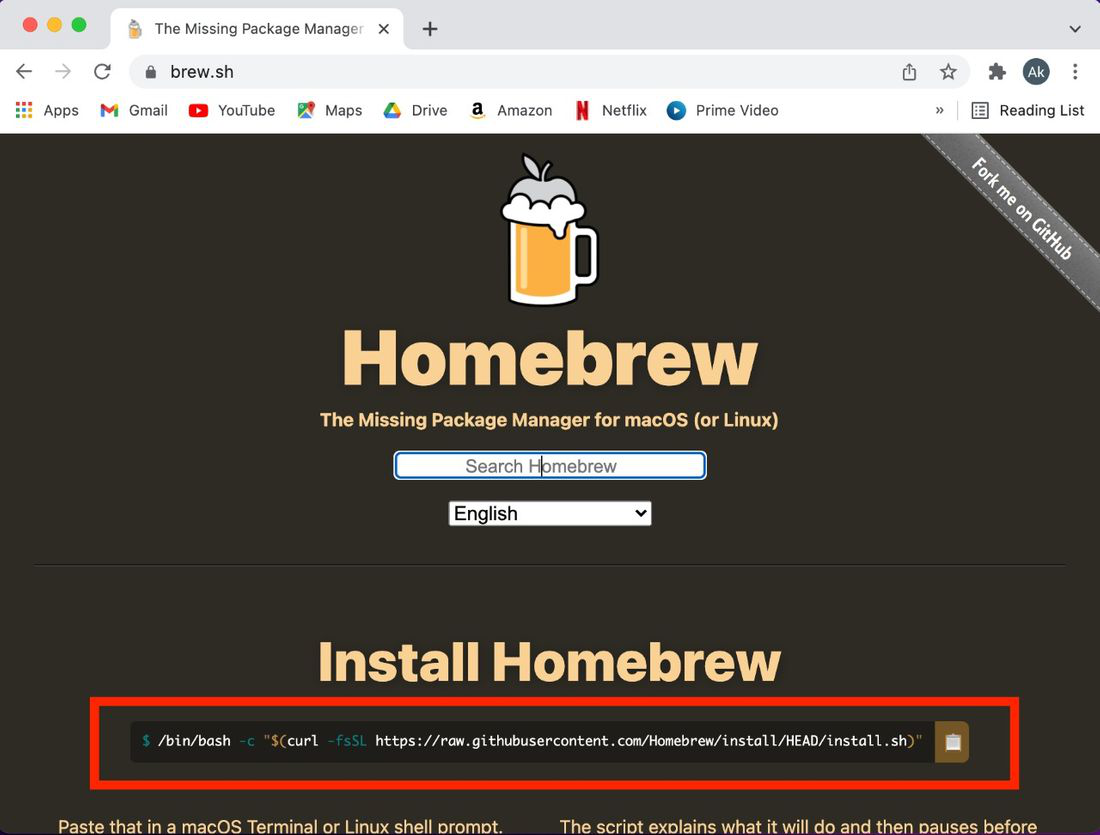
So we start by installing HomeBrew, if you haven’t installed you can navigate to the link by clicking here.
Step 1: Copy the installation command.Installation command
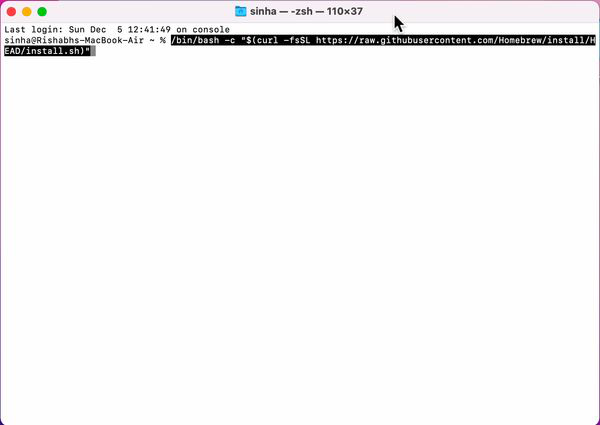
Step 2: Next, paste the copied command in the Terminal.
It will now ask for your ‘sudo’ password, So provide your account password. And press RETURN to continue with the installation.
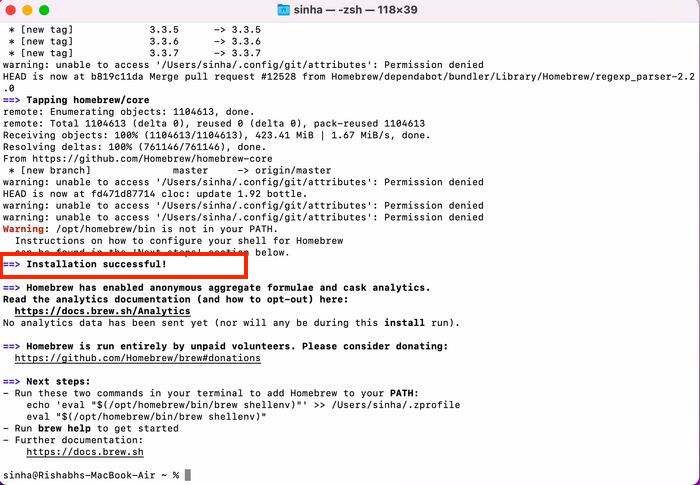
After a few seconds depending upon your internet speed, you should see the output “Installation successful!” message.
Step 3: Now, we will enter the below command to update our packages:
brew update
In this case, we are already up-to-date.
In case if you are getting the ‘brew’ command not found error. You have to run two commands to add Homebrew to your PATH:
echo 'eval "$(/opt/homebrew/bin/brew shellenv)"'
Note: Below, Substitute ‘<username>’ to the username of your macOS account.
>> /Users/<username>/.zorofile eval "$(/opt/homebrew/bin/brew shellenv)"
Now you can update packages.
Step 4: Before we can install PHP, we need to install a third-party repository with a brew tap.
Enter the following command.
brew tap shivammathur/php
Step 5: Now, we are all set and we can install PHP 8 using brew install.
brew install shivammathur/php/php@8.0
Of course, you can change the version to another one, if you are interested in a different version.
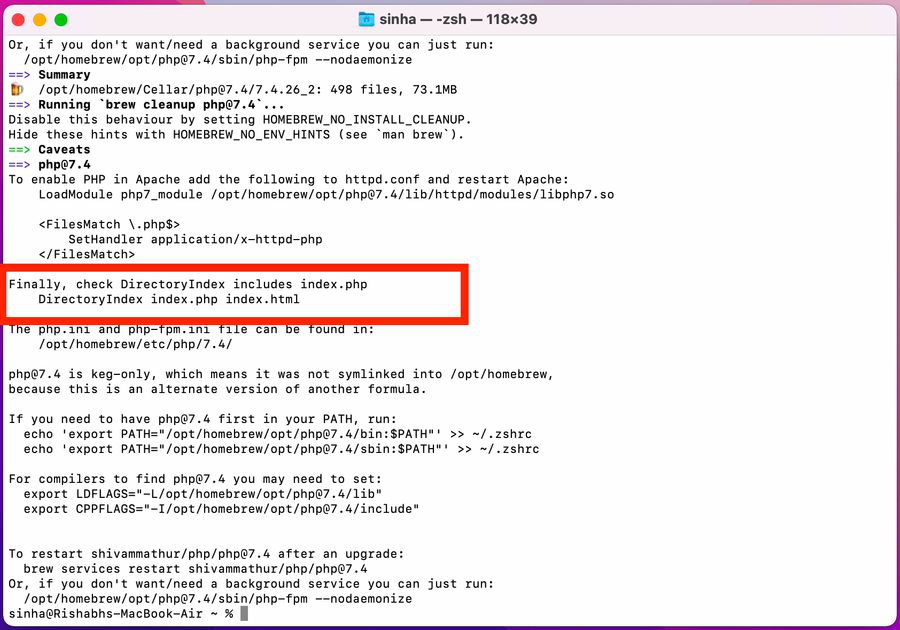
If everything worked, you should now see the selected output below.
And PHP 8.0 is now installed on your MacBook.
Step 6: You need to have PHP@8.0 first in your PATH, to do that run the two following commands:
echo 'export PATH="/opt/homebrew/opt/php@8.0/bin:$PATH"' >> ~/.zshrc
echo 'export PATH="/opt/homebrew/opt/php@8.0/sbin:$PATH"' >> ~/.zshrc
For compilers to find php8.0 you may need to set:
export LDFLAGS="-L/opt/homebrew/opt/php@8.0/lib"
export CPPFLAGS="-I/opt/homebrew/opt/php@8.0/include"
Close and restart Terminal to load new settings.
Check the Version of PHP Installed on your MacOS:
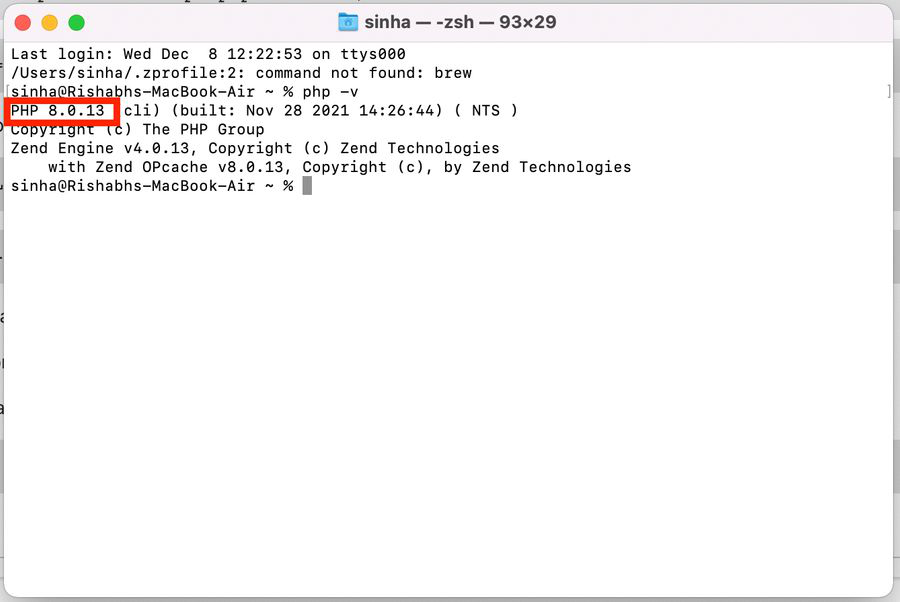
Run the following command to check.
php -v
You can see the version of PHP installed on your MacOS.
Congratulations! You now have installed PHP with associated extensions running on your Mac development environment.
Article Tags :
Similar Reads
- How to install XAMPP on Windows ? XAMPP is the most popular software package which is used to set up a PHP development environment for web services by providing all the required software components. During the process of software deployment, most of the web servers use almost similar components, so use of XAMPP provides easy transit 4 min read
- How to Install and Set up a WAMP Server ? Windows, Apache, MySQL and PHP is commonly abbreviated as WAMP. Some people may confuse with LAMP but the only difference between the two is their operating systems. In case of LAMP, L stands for Linux. Setting up a server included the installation of all the software listed in the abbreviation. Ano 3 min read
- How to install PHP in Windows 10? PHP is a general-purpose scripting language geared towards web development. It is an open-source software (OSS), which is free to download and use. PHP stands for “Hypertext Preprocessor”. PHP files are saved with an extension called .php. It supports many databases MySQL, Oracle, etc.Installation o 2 min read
- How to Install PHP on Linux? PHP is a popular server-side scripting language that is especially used in web development. If you’re working on a Linux environment, whether it’s a personal development setup or a production server, you will likely need PHP installed. In this article, we will see the step-by-step guide to install P 2 min read
- How to Install PHP on MacOS? PHP (Hypertext Preprocessor) is known as a general-purpose scripting language that can be used to develop dynamic and interactive websites. It was among the first server-side languages that could be embedded into HTML, making it easier to add functionality to web pages without needing to call extern 3 min read
- How to set PHP development environment in windows ? What is PHP ? PHP (Hypertext PreProcessor) is a general-purpose programming language developed by Rasmus Lerdorf in 1994 for web development. This is one of the most popular programming language for beginners in web development because of its simplicity, large community and accessibility.Steps to se 3 min read
- How to set up a PHP Console ? PHP is a backend server-side language of web development. In general, we don’t need to take input from the console but sometimes we need to run a small function or block of code, for which we need to take input from the console. Requirements: Server: xampp or WampServer How to set up PHP Console ? S 1 min read
- How to Install IMAP Extension in PHP on MacOS? Imap stands for Internet Message Access Protocol, It is a protocol used by email clients to retrieve email messages from mail servers, It is an application layer protocol in the OSI model. Imap allows us to store our messages on servers so that they can be accessed from multiple devices, whereas POP 4 min read
- How to Install PHP GD-library on CentOS? GD is an open-source code library that helps to create and manipulate PNG, JPEG, and GIF images in PHP. GD is commonly used for the development of websites. Image resizing, cropping, drawing, and adding effects to dynamic rendering can easily be done with its help. Picture handling and GD capacities 2 min read
- How to Install PHP Extensions on Windows? PHP is a general-purpose server scripting language. It is a powerful and important tool for developing dynamic and interactive Web pages. It is widely used, free, fast, flexible, and pragmatic. After installing PHP and a web server on Windows, extensions are also needed because they provide added fu 2 min read

Corporate & Communications Address:
A-143, 7th Floor, Sovereign Corporate Tower, Sector- 136, Noida, Uttar Pradesh (201305)
Registered Address:
K 061, Tower K, Gulshan Vivante Apartment, Sector 137, Noida, Gautam Buddh Nagar, Uttar Pradesh, 201305


@GeeksforGeeks, Sanchhaya Education Private Limited, All rights reserved
 R.M.P Marotta Long Island
Leave a comment