
How to modify Starlink Mini to run without the built-in WiFi router

Oleg Kutkov personal blog
Programming, electronics and diy projects
Electronics, hardware, starlink
How to modify Starlink Mini to run without the built-in WiFi router
Oleg Kutkov / June 15, 2025
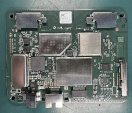
The Starlink Mini terminal is designed as a compact, all-in-one solution with an integrated Wi-Fi router. While this design is ideal for typical consumer use, certain applications—such as custom networking setups, embedded installations, or power-constrained environments—may benefit from removing the internal router entirely. In this article, I’ll detail the process of physically removing the built-in Wi-Fi router board from the Starlink Mini, allowing the terminal to operate solely via Ethernet and offering greater flexibility for advanced users.
Please note that this modification applies only to the Starlink Mini 1 (as of June 14, 2025). Hardware changes in future models, such as the expected Mini 2, may render this process invalid.
Starlink Mini teardown
The disassembly process requires patience and accuracy. I recommend using metal spudgers and a plastic prying tool.

Additionally, you will need a thin, flexible knife or a thin metal wire to remove the router’s PCB.
I prepared a video manual about the teardown process.
Please note that there is no need to remove the metal plate from the Starlink PCB. You can stop the teardown process after removing the router’s PCB.
Removing the metal plate is strongly discouraged. This plate serves as both a heatsink and an EMI shield.
The Starlink CPU runs hot, and without proper cooling, it may throttle the CPU or antenna array. In addition, the plate is glued around the corners with conductive adhesive to ensure effective electromagnetic shielding. The Starlink Mini PCB generates significant EMI, and SpaceX reportedly faced challenges achieving compliance.
Removing the plate can lead to increased emissions and potential interference with nearby electronics.
Starlink Mini PCB connector
The exact type of the connector is unknown. It might be a custom order. But the pitch of the connector is 2 mm, so any standard 2 mm header will fit here nicely.
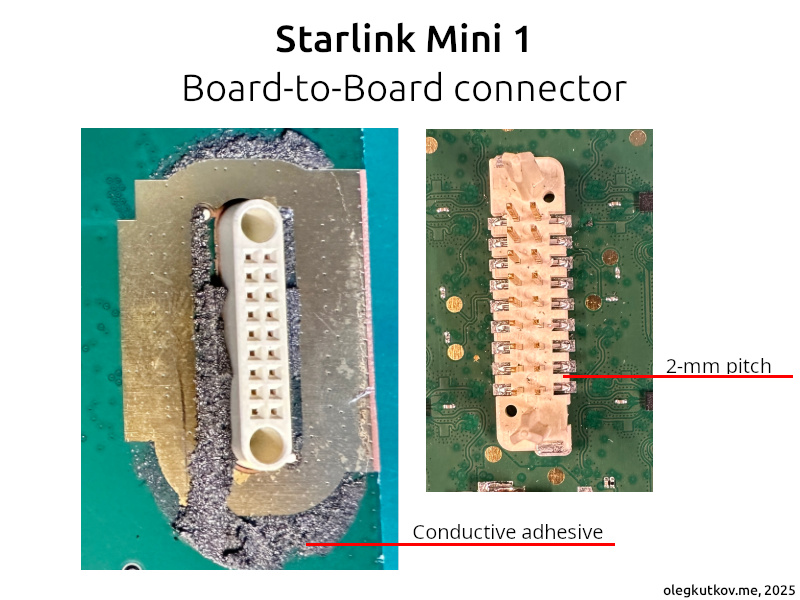
You may notice that this connector is secured with a similar conductive adhesive and a large non-masked grounding area. Additionally, a shield is placed over the connector on the router’s PCB.
This is all done to help contain the EMI.
Connector pinout
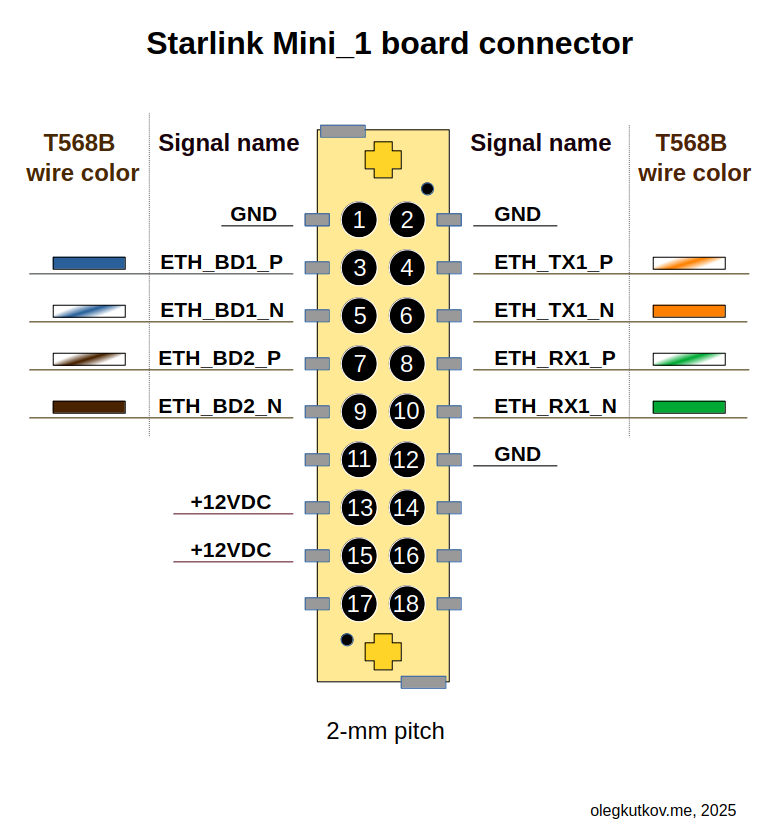
Starlink Mini uses a 1 Gbps Ethernet link between the primary unit and the router. Please note that there is no Ethernet transformer; instead, a direct PHY-to-PHY connection with some decoupling is used. This is acceptable for short distances. With any custom design installation, the Ethernet transformer is mandatory.
The primary voltage bus is 12 VDC.
The connector pinout (Starlink Mini side) is in the image below.
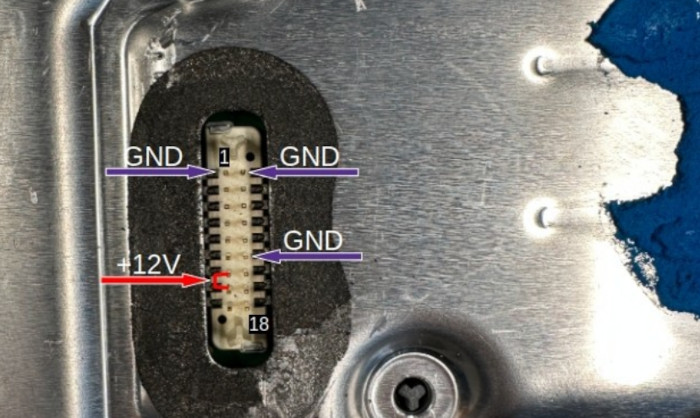
Ethernet line signals are mapped to the corresponding T568B twisted cable colors. Pins 11, 14, 16, 17, and 18 are not used in the current modification and mainly serve Starlink-Router monitoring purposes.
It’s recommended to use all 12 VDC and GND lines.
A reference image to help you identify pins:
Direct Ethernet connection
Below, you can see an example schematic of the direct Ethernet connection to the Starlink Mini_1 PCB connector. This schematic provides required Ethernet isolation and minimal power filtering to ensure proper operation.
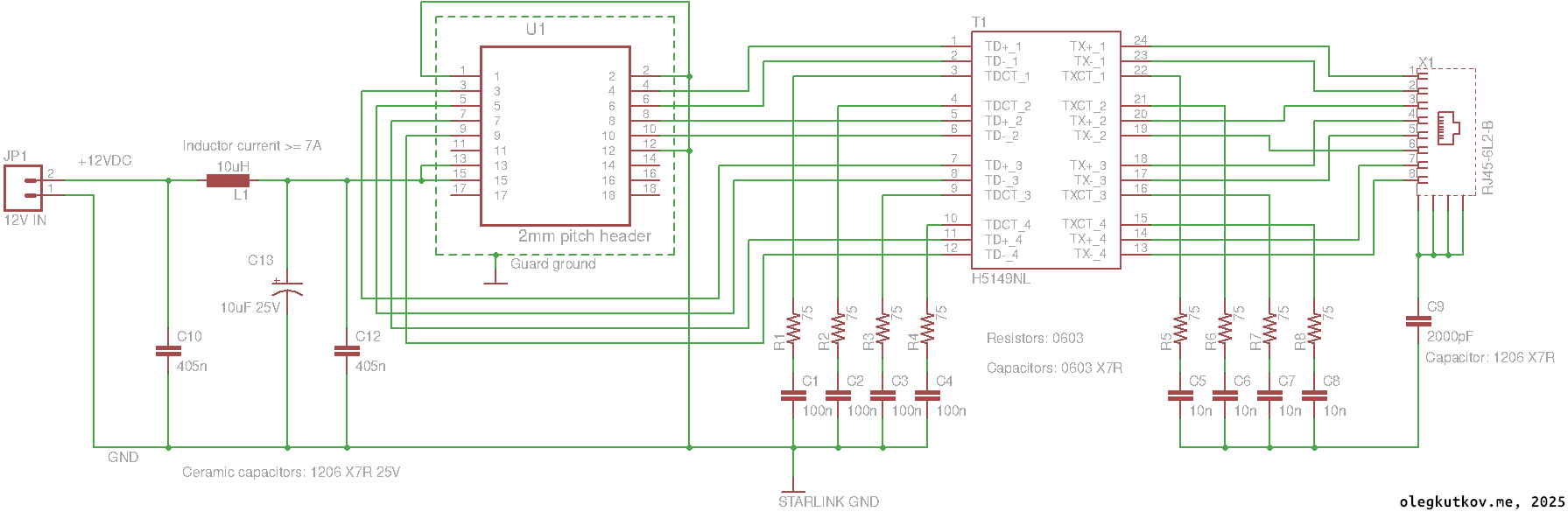
It’s recommended to put a guard ground around the U1 connector. The most optimal design includes conductive adhesive and shielding.
Please, keep wires between the connector and Ethernet transformer as short as possible.
Nominal runtime current over 12V is ~3A with short spikes up to 5A.
Please select the L1 with the appropriate rated current to avoid overheating.
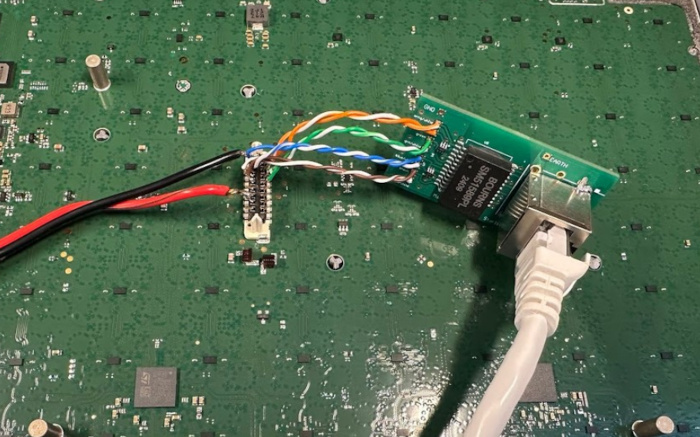
Proof-of-concept using my Ethermod adapter:
Network configuration
The Starlink terminal provides a DHCP IP address in the 192.168.100.0/24 network when not connected to Starlink satellites.
The terminal itself is available at address 192.168.100.1, running a simple web UI and gRPC monitoring/control server.
It’s convenient to get Starlink debug data using grpcurl. Example request (getting the current status of the terminal):
grpcurl -plaintext -d {\"get_status\":{}} 192.168.100.1:9200
SpaceX.API.Device.Device/Handle
After connecting to the Starlink network, the Ethernet interface provides a tunneled DHCP service, assigning clients IP addresses from the Starlink pool – typically a CGNAT IPv4 address (e.g., 100.72.116.102) and a link-global IPv6 address. This network configuration provides access to the Internet.
Please note that the Starlink DHCP server provides only a single IP address. Therefore, you can connect only one host or an upstream router directly to share the connection with multiple devices.
After acquiring the “external” IP address, your client naturally loses access to the 192.168.100.1 host.
To fix this, you can add a static route to the terminal:
sudo ip route add 192.168.100.1 dev ethX
Replace ethX with the name of your Ethernet interface connected to Starlink.
No additional configuration is required. Once your host obtains an IP address after joining the Starlink network, it should have internet access.
Don’t forget to monitor account status and connection state via the gRPC output.
Bonus – important gRPC status codes
The gRPC get_status output contains a lot of helpful information.
In case of connection issues, the “outage” section should appear in the gRPC output. Example:
"outage": {
"cause": "NO_SCHEDULE",
"startTimestampNs": "1815683934050410150",
"durationNs": "4320001119",
"didSwitch": true
},
Possible values of the “cause”:
BOOTING – The terminal is starting up, initializing modules, and waiting for a GPS fix.
THERMAL_SHUTDOWN – The terminal has overheated and shut down to protect components.
NO_SCHEDULE – The terminal is unable to communicate with satellites. This could be due to a weak signal, incorrect GPS data, or other issues.
NO_SATS – The terminal failed to detect any satellites in the sky.
OBSTRUCTED – An obstruction is detected along the radio beam path.
NO_DOWNLINK – The terminal cannot receive data from the satellite.
NO_PINGS – The satellite has lost connection to the ground segment, although the terminal’s connection to the satellite remains intact.
You can monitor the status of your Starlink account in the section “disablementCode“.
Possible disabement codes:
UNKNOWN_STATE – Terminal reported an undefined or unrecognized state.
OKAY – The Account is active and should provide access to the internet.
NO_ACTIVE_ACCOUNT – Starlink account has been removed or the service is on pause.
TOO_FAR_FROM_SERVICE_ADDRESS – The terminal is operating outside the registered service address region.
IN_OCEAN – Terminal is located in an oceanic zone not covered by the current service plan.
BLOCKED_COUNTRY – Terminal is located in a country where Starlink service is not permitted.
DATA_OVERAGE_SANDBOX_POLICY – Data cap exceeded; Change service plan to get more data.
CELL_IS_DISABLED – The local service cell is disabled in the Starlink system.
ROAM_RESTRICTED – Roaming is not allowed under the current account or plan.
UNKNOWN_LOCATION – Terminal location cannot be determined by the Starlink satellite.
ACCOUNT_DISABLED – The Starlink account has been suspended or permanently disabled.
UNSUPPORTED_VERSION – Terminal firmware is incompatible or outdated.
MOVING_TOO_FAST_FOR_POLICY – Terminal is moving too quickly (e.g., in a vehicle or aircraft), violating policy limits.
UNDER_AVIATION_FLYOVER_LIMITS – Terminal is under an aircraft flyover zone where service is restricted.
INVALID_COUNTRY – Terminal is in a country not supported by Starlink.
UNLICENSED_COUNTRY – The terminal is located in a country where Starlink lacks regulatory approval.
The disablement code should always be available after a successful connection to the satellites. The Starlink system provides this information. The user terminal itself has no knowledge of service plans, countries, regional, or velocity restrictions – it simply follows commands received from the Starlink satellite.
Thanks for reading!Tagged ethernet, router, starlink, starlink mini, wifi
Related Posts
How to physically transfer Starlink account from one terminal to another
May 22, 2025
Custom SIM card in Tesla Model 3 2024+, Tesla Model Y 2025+ and Cybertruck
May 12, 2025
Starlink rev 3 (V2) power architecture
December 31, 2024

About Oleg Kutkov
View all posts by Oleg Kutkov →
Post navigation
How to physically transfer Starlink account from one terminal to another
2 thoughts on “How to modify Starlink Mini to run without the built-in WiFi router”
Leave a Reply
Your email address will not be published. Required fields are marked *
Comment *
Email *
Website

Categories
- Allsky camera (5)
- Astro tools (9)
- Automotive (3)
- Electronics (39)
- Firmware (3)
- hardware (17)
- Linux kernel (8)
- Linux system development (11)
- Networking (13)
- Radio & antennas (16)
- Radioastronomy (5)
- Reverse engineering (9)
- Software (19)
- starlink (5)
- tesla (1)
- Uncategorized (1)
Recent Posts
- How to modify Starlink Mini to run without the built-in WiFi router
- How to physically transfer Starlink account from one terminal to another
- Custom SIM card in Tesla Model 3 2024+, Tesla Model Y 2025+ and Cybertruck
- Starlink rev 3 (V2) power architecture
- Powering Starlink REV4 (V3) from the 12V without PoE injector/router
Recent Comments
- Oleg Kutkov on Starlink rev 3 (V2) power architecture
- jay on Starlink rev 3 (V2) power architecture
- Oleg Kutkov on Starlink rev 3 (V2) power architecture
- jay on Starlink rev 3 (V2) power architecture
- Oleg Kutkov on Starlink rev 3 (V2) power architecture
Oleg Kutkov personal blog
Site search
Search for:
Support author
You can send donations on PayPal using my email contact@olegkutkov.me
Thank you for your support!
This work is licensed under a Creative Commons Attribution 4.0 International License
Oleg Kutkov
Blog Way by ProDesigns
 R.M.P Marotta Long Island
We can’t spoof satellites in orbit.